
Plan, Play, Review: How the Gig Calendar Connects Your Sets to Real Gigs
Great sets don't happen in isolation — they happen at gigs. The new Gig Calendar in SetFlow connects your set preparation to your real-world bookings so you always know what you're playing, where, and when.
Why a Gig Calendar in a DJ Set Tool?
Most DJ software treats set generation and gig scheduling as separate problems. You build sets in one tool and track bookings in a spreadsheet, a notes app, or your head. That disconnect means you're constantly context-switching: “Which set did I prepare for the Fabric warm-up? Was it the deep house journey or the melodic techno one?”
SetFlow's Gig Calendar lives right alongside your sets, library, and playlists. Schedule a gig, link the sets you've prepared, play the gig, then record how it went — all in one place. Over time, your gig history becomes a feedback loop that makes your set preparation smarter.
Scheduling a Gig
Click Add Gig to open the scheduling form. Every gig has a name and date — the rest is optional but useful:
- Venue & Location — Where you're playing (e.g. Fabric, London)
- Set Duration — How long your slot is, from 30 minutes to 3 hours
- Time Slot — Warm Up, Peak Time, Closing, or Headline
- Notes — Pre-gig reminders like “bring USB backup” or “promoter wants 128+ BPM”
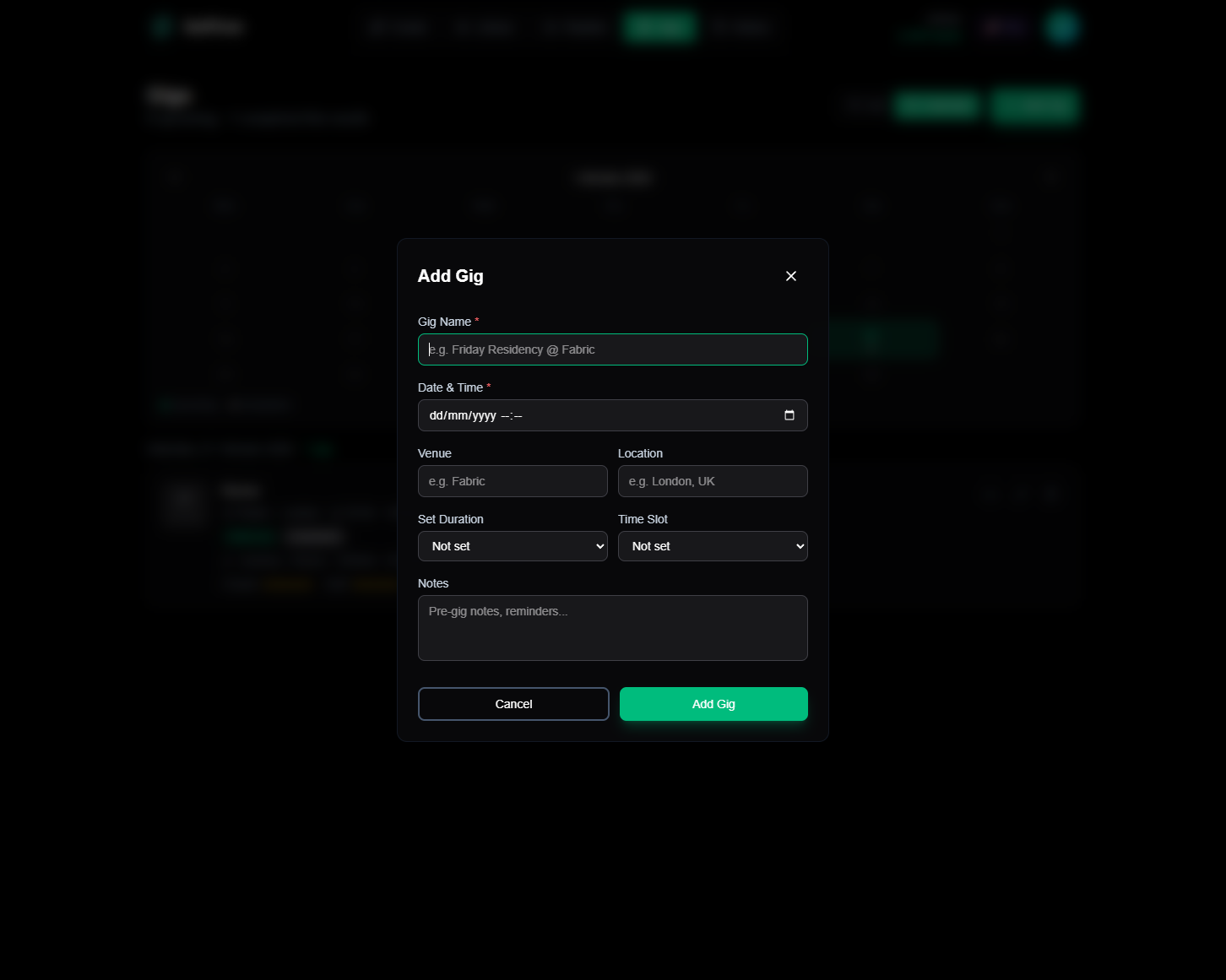
The time slot field is especially useful when combined with set linking. If you tag a gig as “Warm Up,” you know to link a warm-up energy profile set rather than a peak-time banger.
Two Ways to View Your Gigs
The Gigs page offers two view modes, toggled with the buttons at the top right:
List View
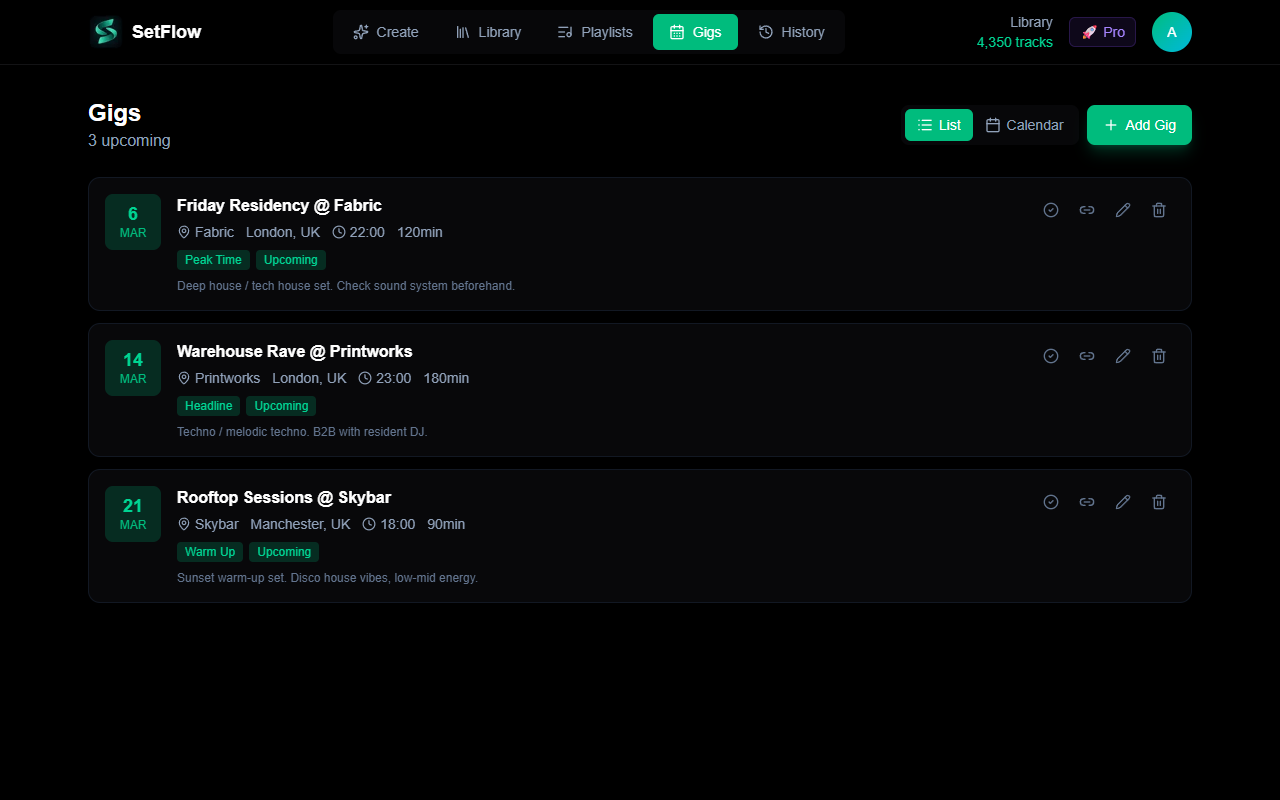
The default view shows all your gigs in a chronological list. Upcoming gigs appear first (sorted by date ascending), followed by completed gigs (sorted newest first). Each gig card shows the date badge, name, venue, time, duration, time slot badge, and any linked sets.
Calendar View
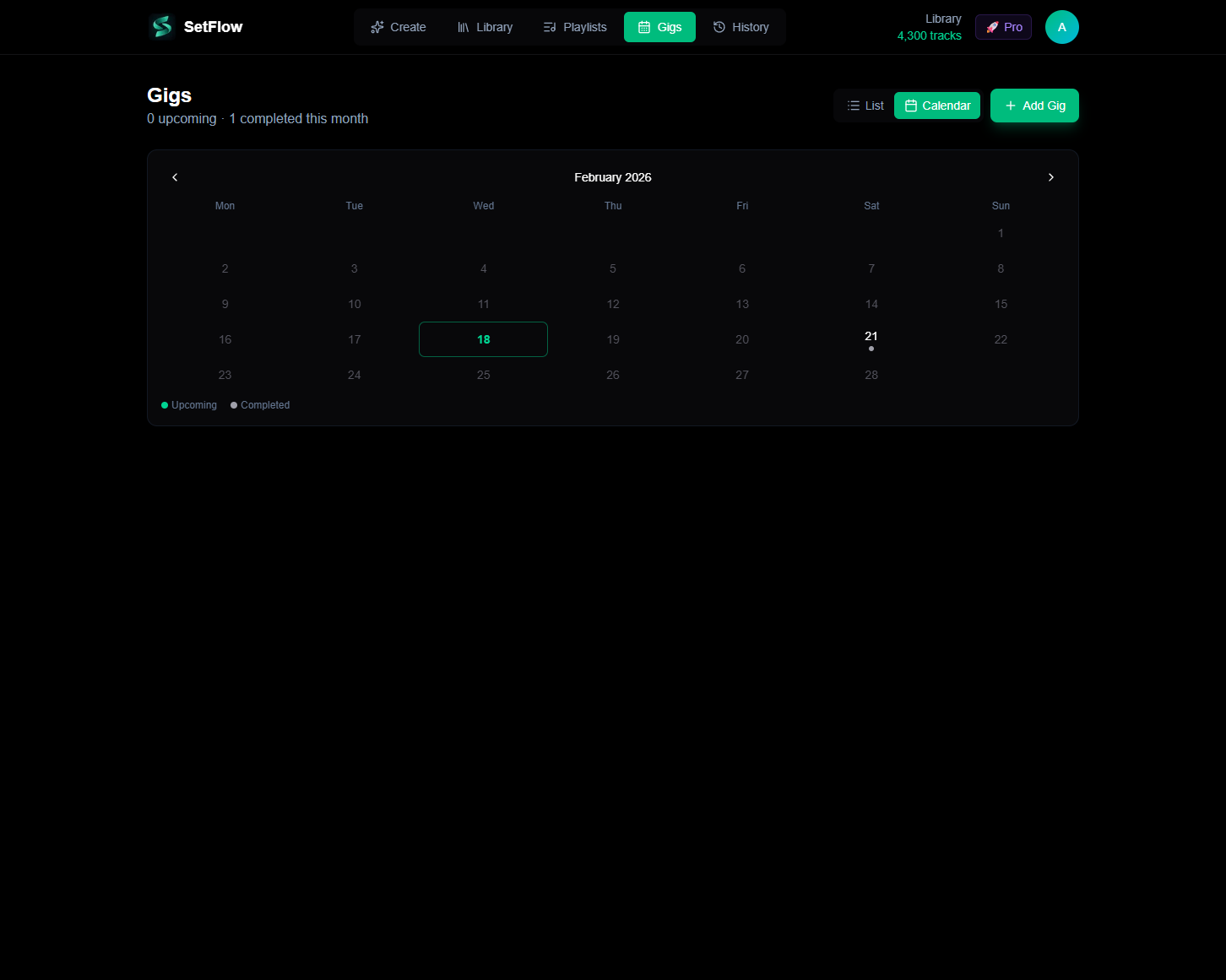
The calendar view shows the current month with navigation arrows to move between months. Dates with gigs display colour-coded dot indicators: green for upcoming gigs, grey for completed ones. Today's date is highlighted so you can quickly orient yourself.
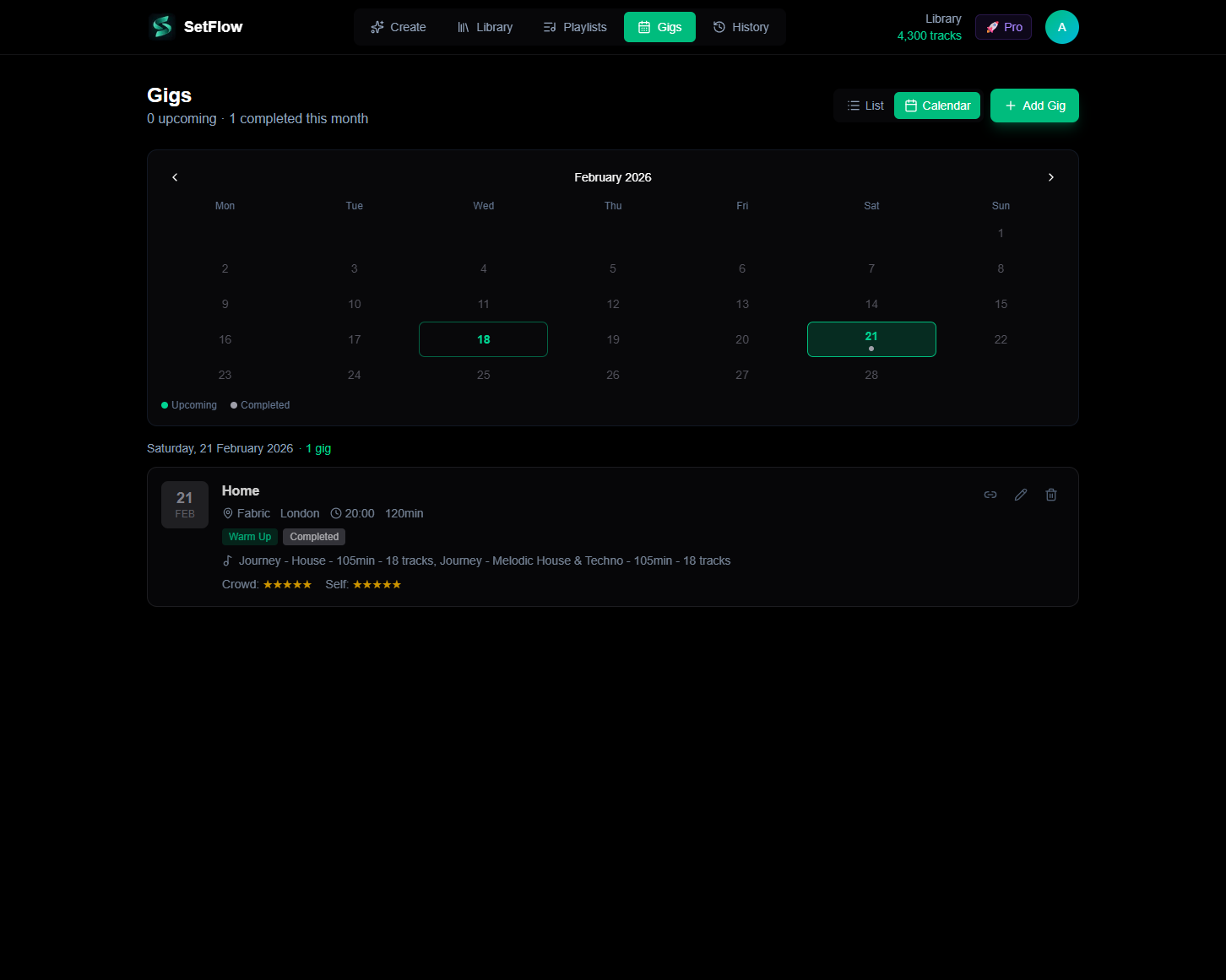
Click any date to filter the gig list below the calendar. This is useful when you have multiple gigs in a month and want to focus on a specific date.
Linking Sets to Gigs
The real power of the Gig Calendar comes from linking your generated sets to specific gigs. Click the link icon on any gig card to open the Link Set modal, where you can search, filter by energy profile, and sort to find the perfect set.
You can link multiple sets to a single gig — handy if you've prepared alternatives or if your slot is long enough to span two sets. Linked set names appear directly on the gig card so you always know what's prepared.
Sets that are already linked to another gig appear greyed out in the modal, preventing accidental double-booking. If you need to reuse a set, unlink it from the other gig first.
After the Gig: Post-Gig Reviews
Once you've played a gig, mark it as complete to unlock the review form. This is where the feedback loop starts:
- Crowd Reaction (1–5 stars) — How did the audience respond? Did they stay on the floor? Were they energised by your track selection?
- Performance Rating (1–5 stars) — Your honest self-assessment. How well did you execute transitions, read the room, and manage energy?
- Post-Gig Notes — Free-form reflections. What worked? What would you change? Did a specific track kill the vibe or save the set?
These ratings appear on the gig card in both list and calendar views. Over time, you build a history of what sets worked where, which venues responded to which energy profiles, and how your performance improves.
The Full Workflow
Here's how the Gig Calendar fits into your DJ preparation:
- Book a gig — Add it to the calendar with venue, time slot, and duration
- Generate sets — Use the set builder or playlist builder to create sets that match the time slot
- Link sets — Attach the right sets to the gig so everything is connected
- Play the gig — Export your linked set and load it into Rekordbox
- Review — Mark the gig complete, rate the crowd and your performance, jot down notes
- Improve — Next time, sort by rating in the Link Set modal to surface your best-performing sets
Quick Reference
The Gig Calendar is available on all tiers including the free trial. Start by scheduling your next booking and linking a set — the difference between “I think I prepared something” and “I know exactly what I'm playing” is just a couple of clicks.
Ready to build better sets?
Import your Rekordbox, Traktor, or Serato library and generate perfectly mixed DJ sets in seconds.
Try SetFlow Free