
Traktor Support: Import Your Collection & Export M3U Sets
SetFlow now supports Traktor Pro. Import your Traktor collection, generate harmonically-mixed sets with the same Camelot wheel matching and energy curves you know from Rekordbox, and export back to Traktor-compatible M3U playlists — all in under a minute.
Why Traktor Support?
Traktor Pro is one of the most popular DJ platforms in the world, used by professionals and hobbyists alike. Until now, SetFlow only worked with Rekordbox libraries — which meant Traktor users couldn't take advantage of harmonic set generation, energy curve planning, or smart crate filtering.
That changes today. Traktor users get the full SetFlow experience: import your analysed collection, build intelligent sets, and export them as M3U playlists that Traktor can read directly.
How to Import from Traktor
The import process is straightforward:
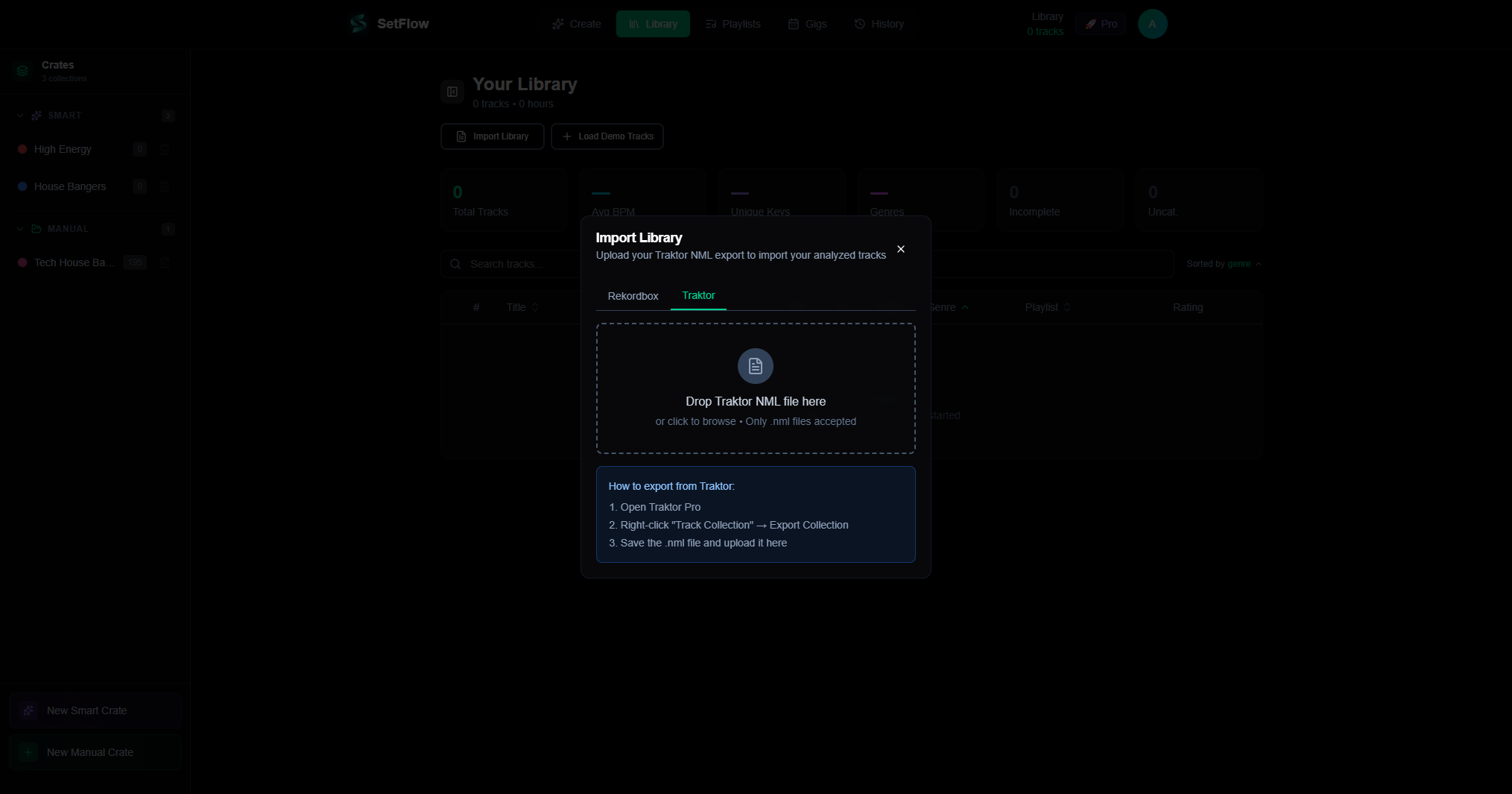
- Export your Traktor collection — in Traktor Pro, right-click “Track Collection” and select “Export Collection” to save an NML file
- Open the import modal — go to Library and click “Import Library”, then select the Traktor tab
- Upload your NML file — drag and drop or click to browse. SetFlow parses your entire collection in seconds
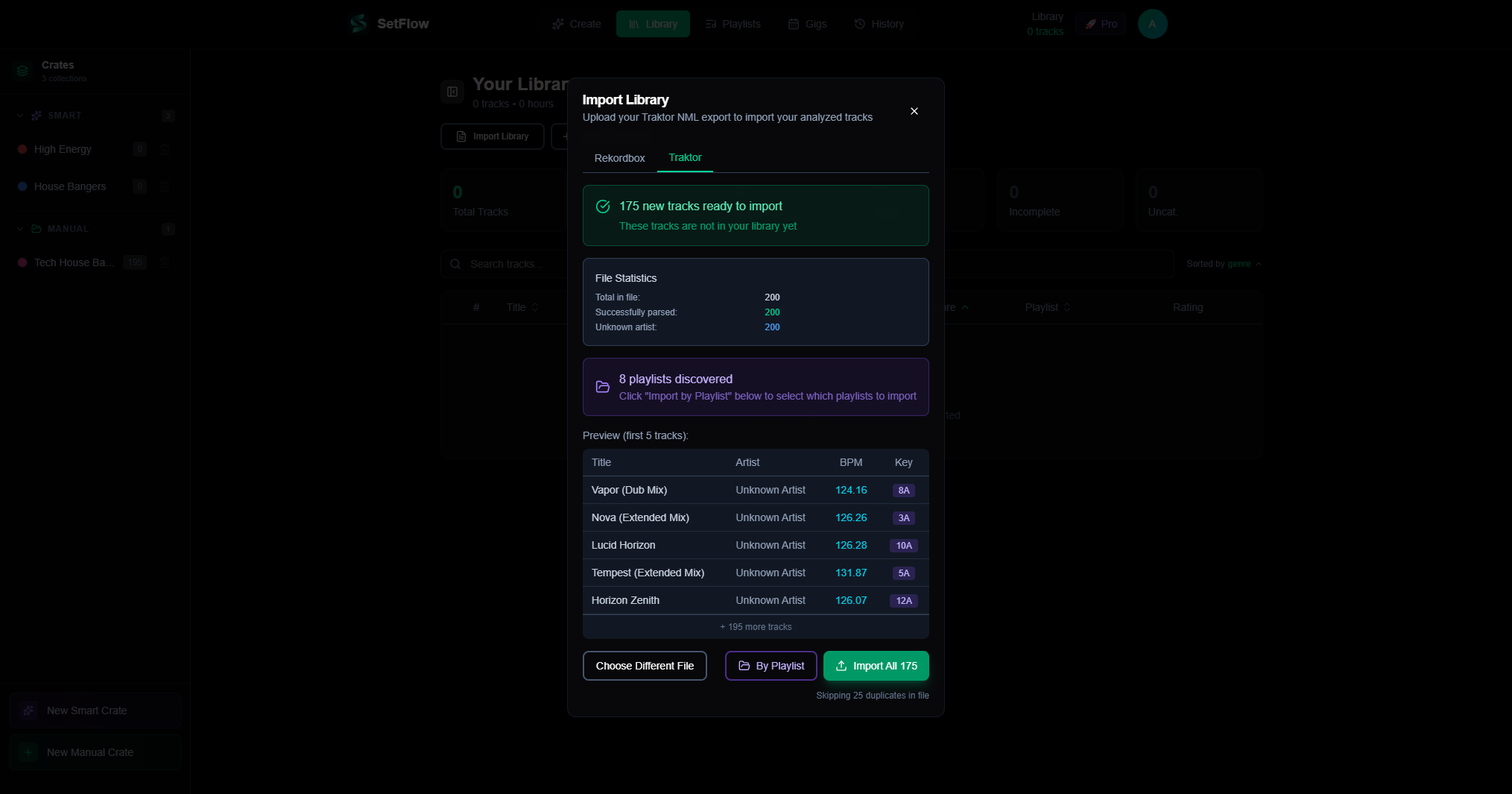
- Review and import — preview your tracks, choose to import everything or select specific playlists, then hit import
Playlist Import
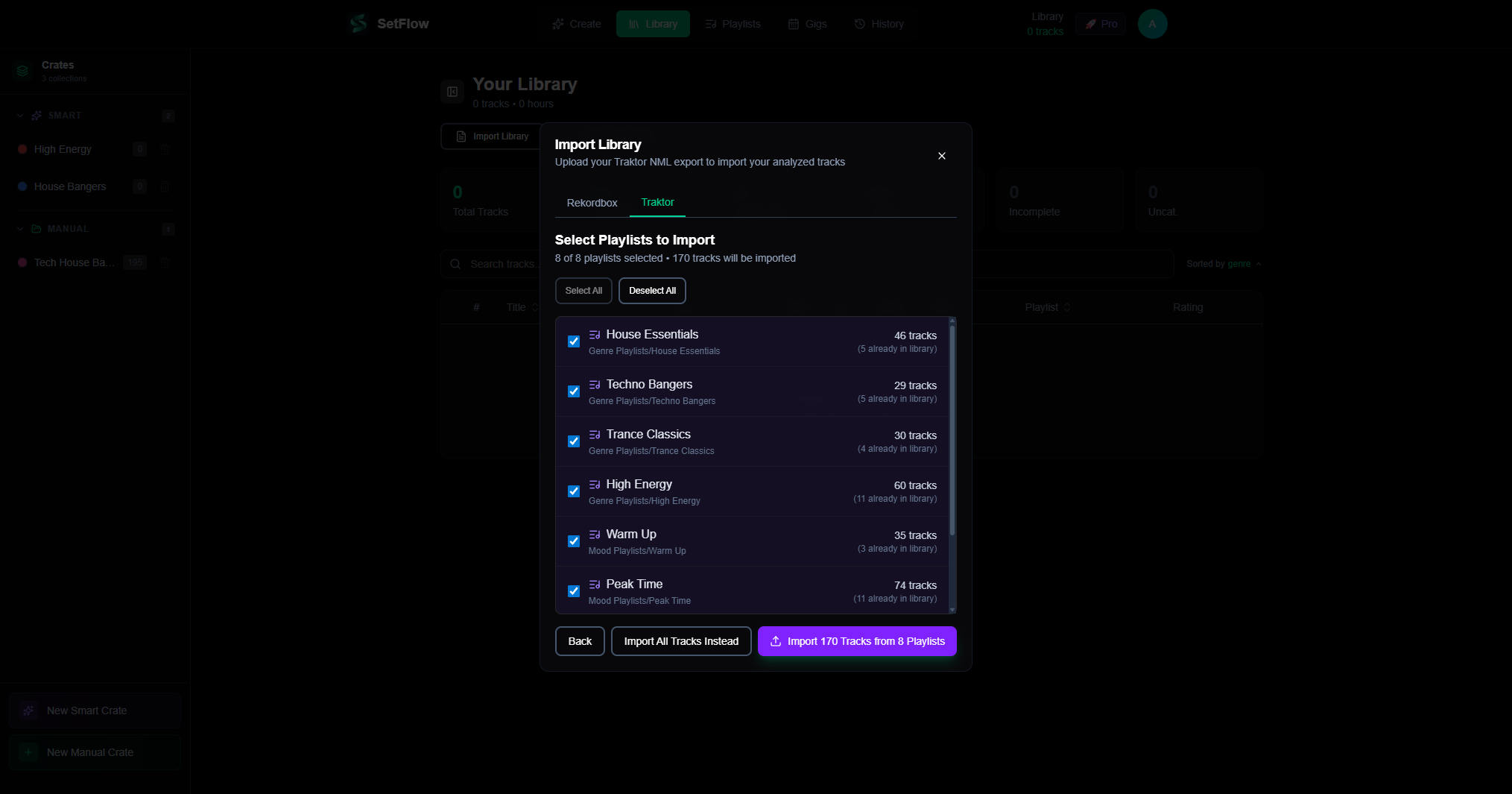
Traktor users often organise tracks into playlists and folder hierarchies. SetFlow preserves this structure during import — click “By Playlist” to see all your playlists with their full folder paths and track counts.
You can select which playlists to import, and SetFlow will create matching playlists in your library. Duplicate tracks across playlists are handled automatically — each track is only imported once, then linked to all relevant playlists.
What Gets Imported
SetFlow reads every piece of useful metadata from your Traktor NML file:
- BPM — Traktor's analysed tempo, preserved to two decimal places
- Musical key — Traktor stores keys as integer values (0–23) and Open Key notation (e.g. “10m”, “5d”). SetFlow converts both formats to Camelot notation for harmonic mixing
- Genre — imported directly and normalised into SetFlow's genre families for smart filtering
- Energy — derived from BPM and genre metadata, same as Rekordbox imports (neither platform stores an explicit energy value)
- Title, artist, album — all standard metadata fields
- Rating — Traktor's 0–255 rating scale is converted to SetFlow's 0–5 star system
- File path — Traktor's path format (using
/:separators) is reconstructed to standard paths for cross-referencing
Generating Sets from Traktor Tracks
Once imported, your Traktor tracks work exactly like Rekordbox tracks in every part of SetFlow. The set generator uses Camelot key matching, BPM compatibility, and energy curves to build harmonically-mixed sets — regardless of which platform the tracks came from.
You can even mix Traktor and Rekordbox tracks together in the same set. SetFlow treats them identically after import.
M3U Export for Traktor
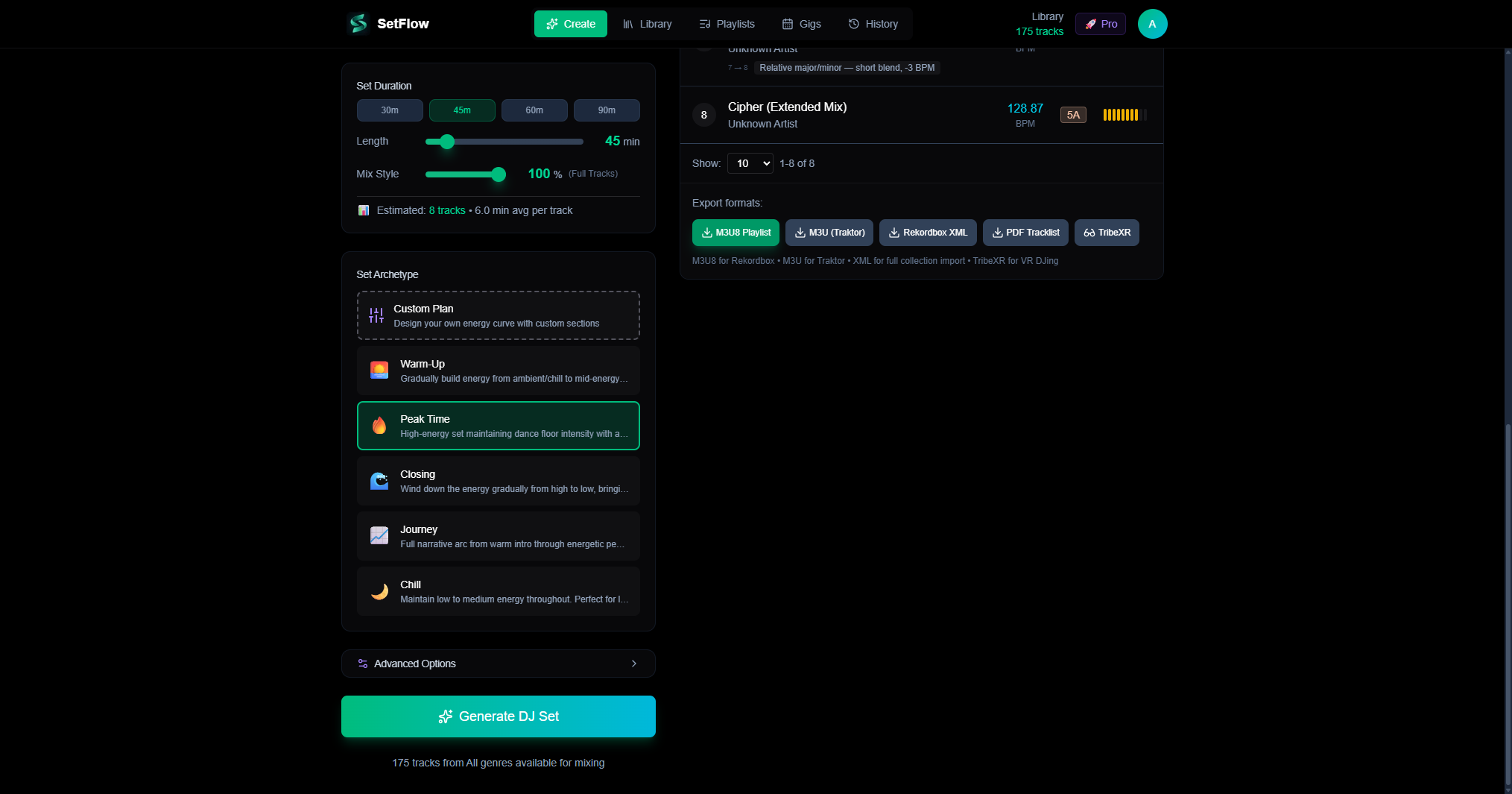
Traktor imports M3U playlists natively, so we've added a dedicated M3U export alongside the existing M3U8 (Rekordbox) and XML formats. After generating a set, click “M3U (Traktor)” to download a Traktor-compatible playlist file.
The M3U export is available in three places:
- Create page — in the export section after generating a set
- History page — on every saved set card
- Expanded set view — in the detailed track list view
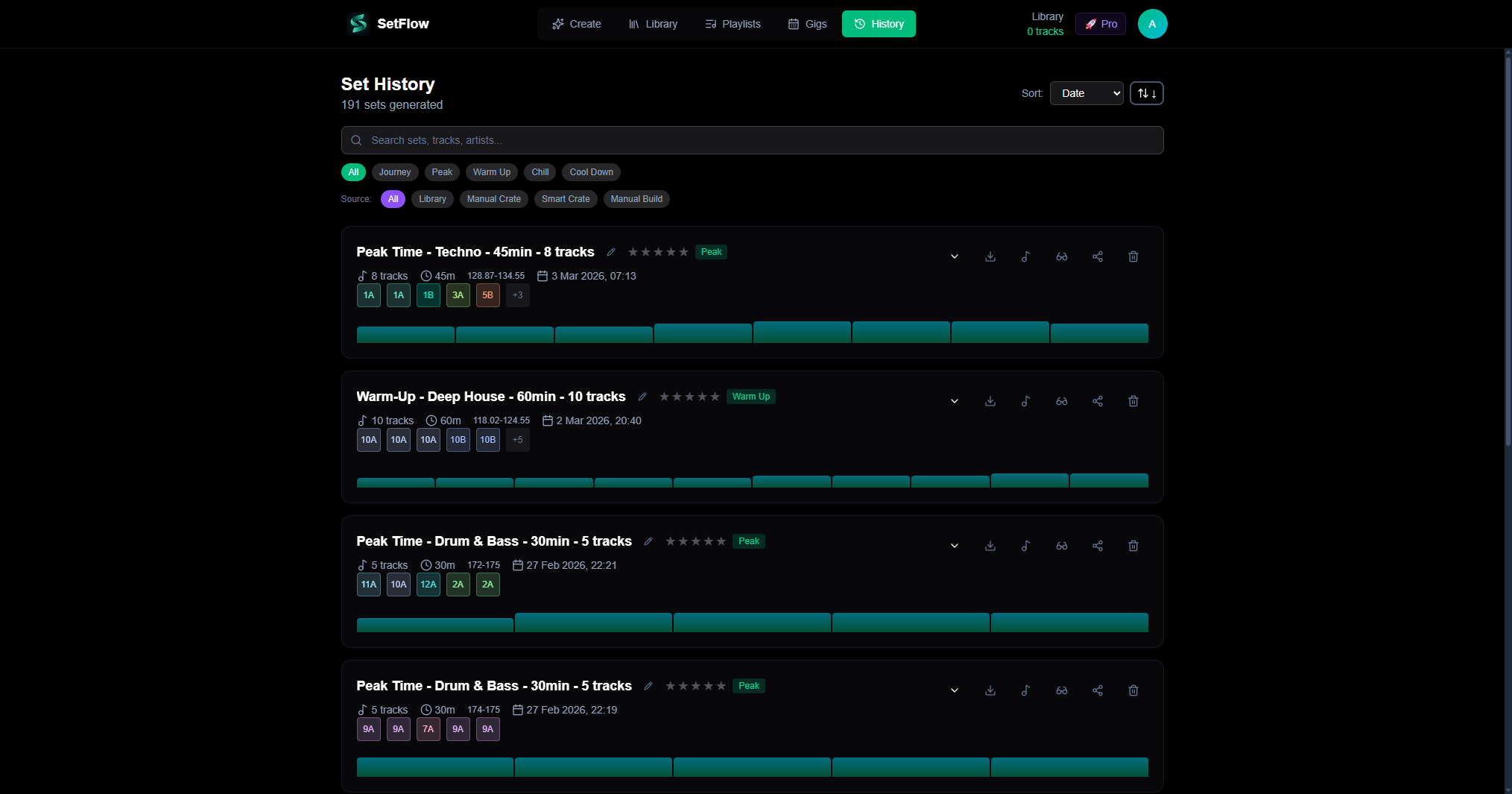
The Traktor + SetFlow Workflow
Here's the complete workflow from Traktor to a planned set and back:
- Export your collection from Traktor Pro as an NML file
- Import it into SetFlow via the Traktor tab
- Generate a set — pick your genre, energy profile, and duration
- Download the M3U playlist
- Import the M3U into Traktor — your planned set appears as a playlist
- Load the tracks in order and mix with confidence
The whole process takes about two minutes. Every transition is pre-planned for harmonic compatibility, so you can focus on the mix rather than track selection.
Try It Now
Traktor support is available on all plans — trial, Hobby, and Pro. Head to your Library, click “Import Library”, select the Traktor tab, and upload your NML file.
New to SetFlow? Start your free trial and import your Traktor collection today.
Quick Summary
- ✓Full Traktor NML import with BPM, key, genre, and rating metadata
- ✓Automatic key conversion from Traktor's format to Camelot notation
- ✓Playlist and folder hierarchy preservation during import
- ✓M3U export for Traktor-compatible playlist files
- ✓Mix Traktor and Rekordbox tracks together in the same set
- ✓Available on all plans — trial, Hobby, and Pro
Ready to build better sets?
Import your Rekordbox, Traktor, or Serato library and generate perfectly mixed DJ sets in seconds.
Try SetFlow Free