
TribeXR Support: Export Your Sets to VR
VR DJing is growing fast, and TribeXR is leading the charge. Starting today, SetFlow has first-class support for TribeXR — export your harmonically-mixed sets directly to TribeXR on Quest, PC VR, or via Dropbox with a single click.
Why TribeXR?
TribeXR is the most popular VR DJ simulator, with over 11,000 members in its Discord community. It lets you practice mixing on virtual decks with real music — perfect for learning, warming up before a gig, or just having fun. But until now, getting a well-planned set into TribeXR meant manual work: building playlists by hand, exporting XML files with the right format, and figuring out where to copy them on each platform.
SetFlow eliminates all of that. Build your set with harmonic mixing, energy curves, and BPM matching — then export it directly to TribeXR in one click.
The Export Flow
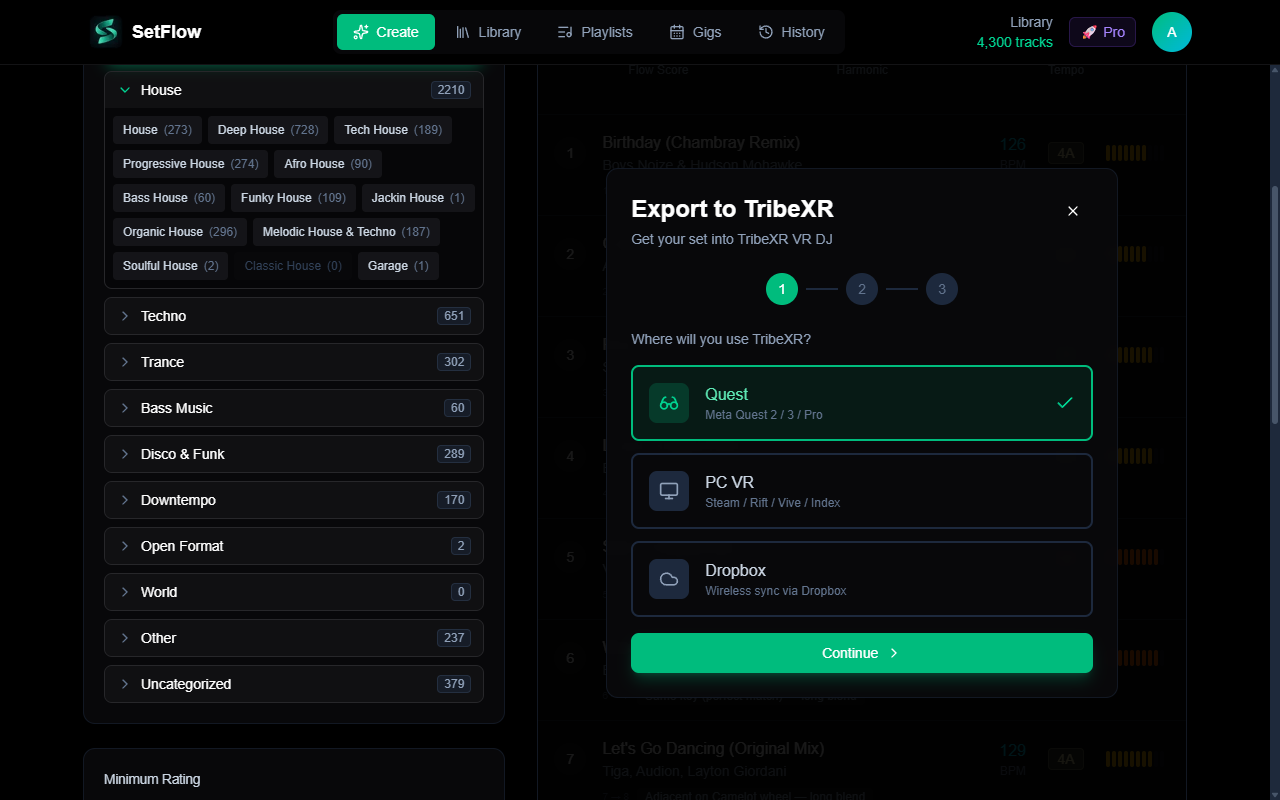
We've built a guided 3-step export modal that walks you through everything:
- Choose your platform — Quest, PC VR (Steam/Rift/Vive/Index), or Dropbox for wireless sync
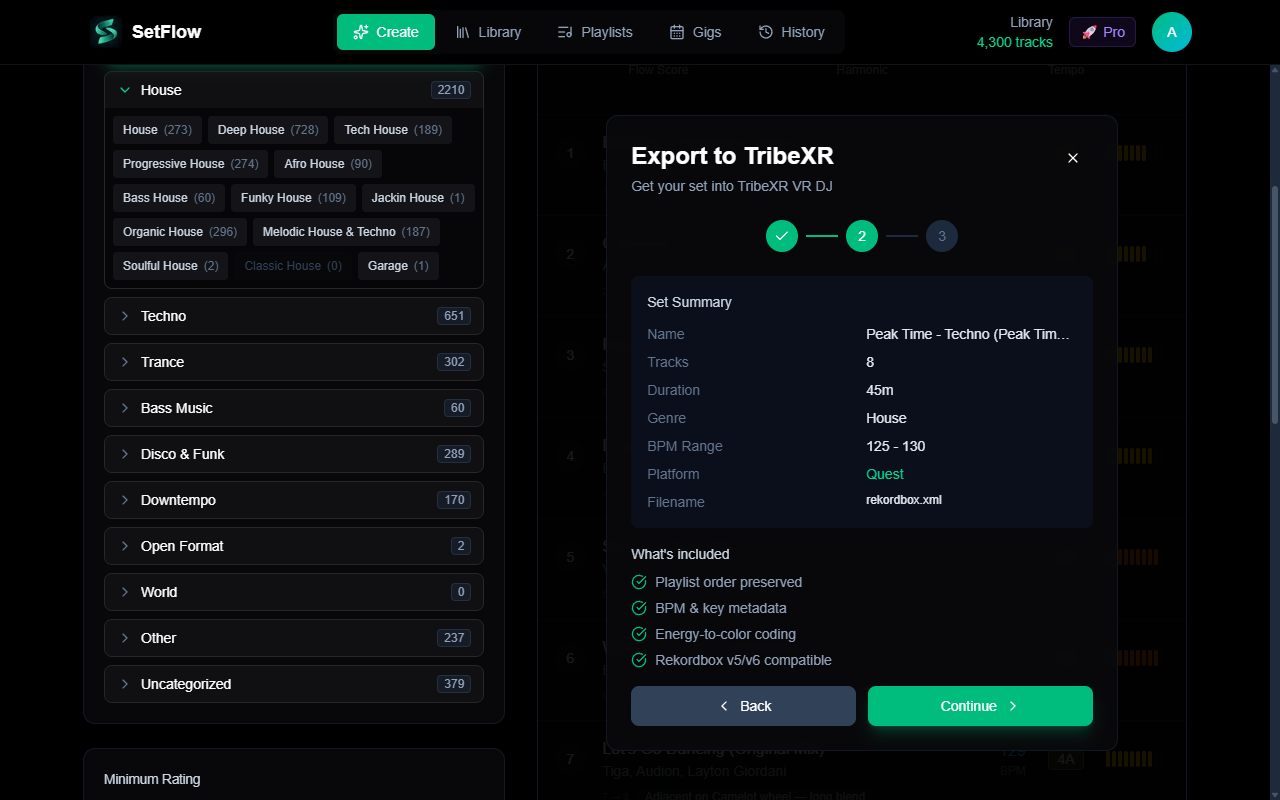
- Review your set — see a summary of tracks, duration, BPM range, genre, and platform before downloading
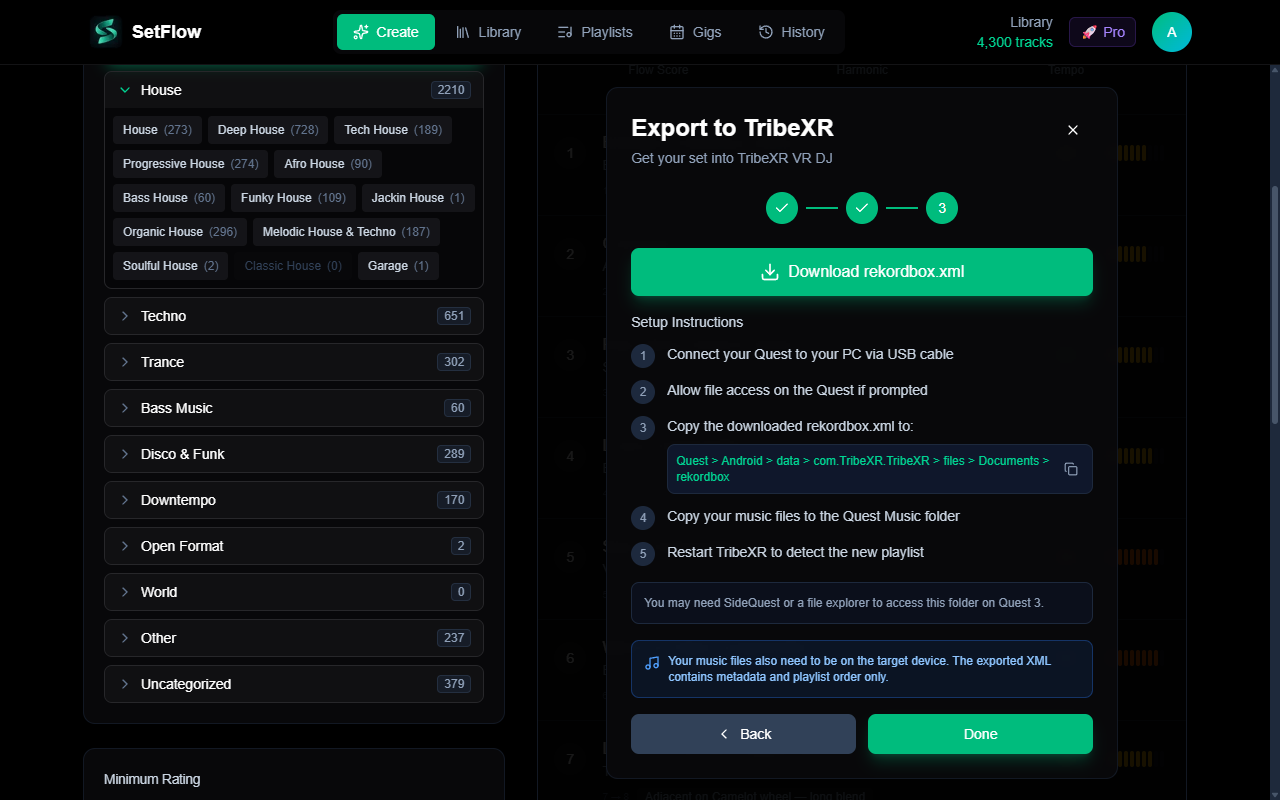
- Download and follow instructions — get the
rekordbox.xmlfile with platform-specific setup steps and one-click path copying
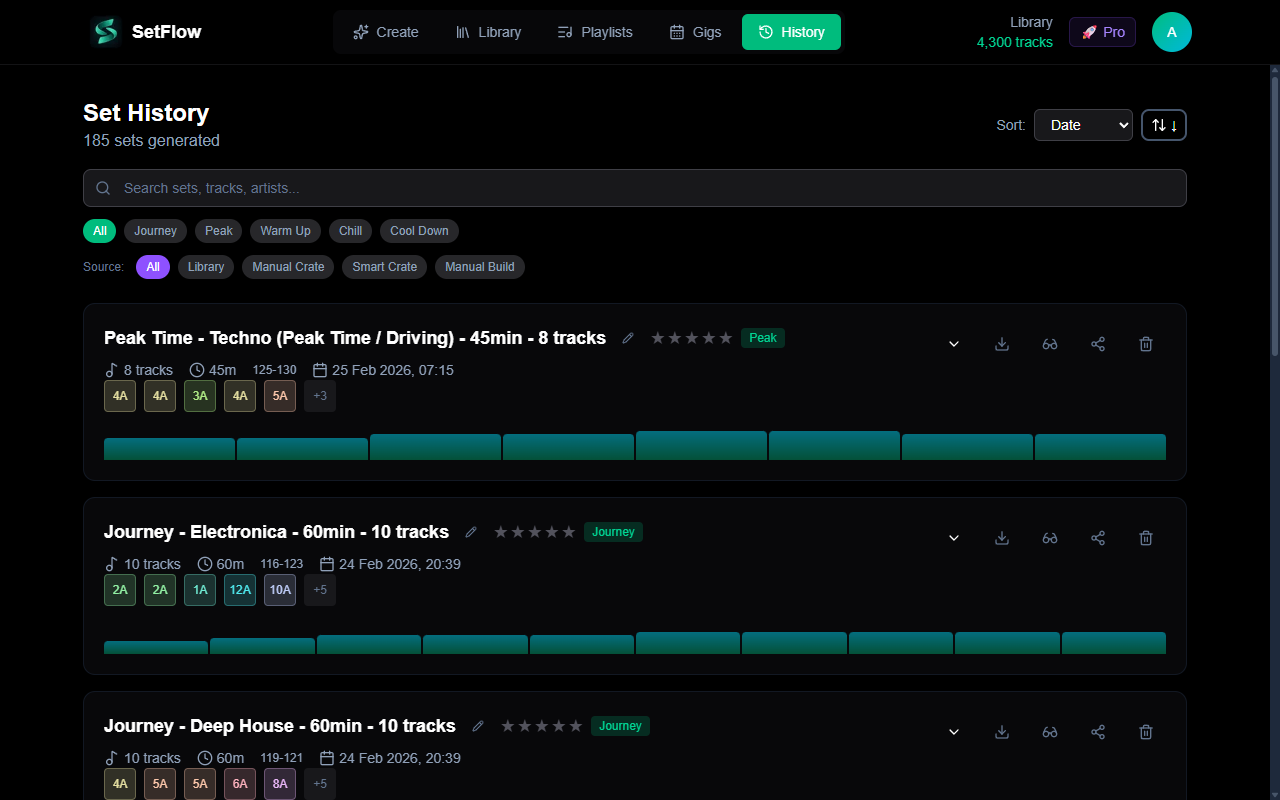
The modal is accessible from two places: the Create page after generating a set, and the History page for any previously saved set.
What Gets Exported
The TribeXR export generates a Rekordbox-compatible XML file optimised for TribeXR's import format. Here's what's included:
- Playlist order preserved — your tracks appear in exactly the order SetFlow planned them, maintaining the energy arc
- BPM & key metadata — every track carries its BPM and Camelot key so you can see harmonic compatibility in TribeXR
- Energy-to-colour coding — track energy levels are mapped to Rekordbox colour codes, giving you a visual energy indicator on TribeXR's decks
- Rekordbox v5/v6 compatible — the XML follows the standard Rekordbox format that TribeXR expects
Platform-Specific Paths
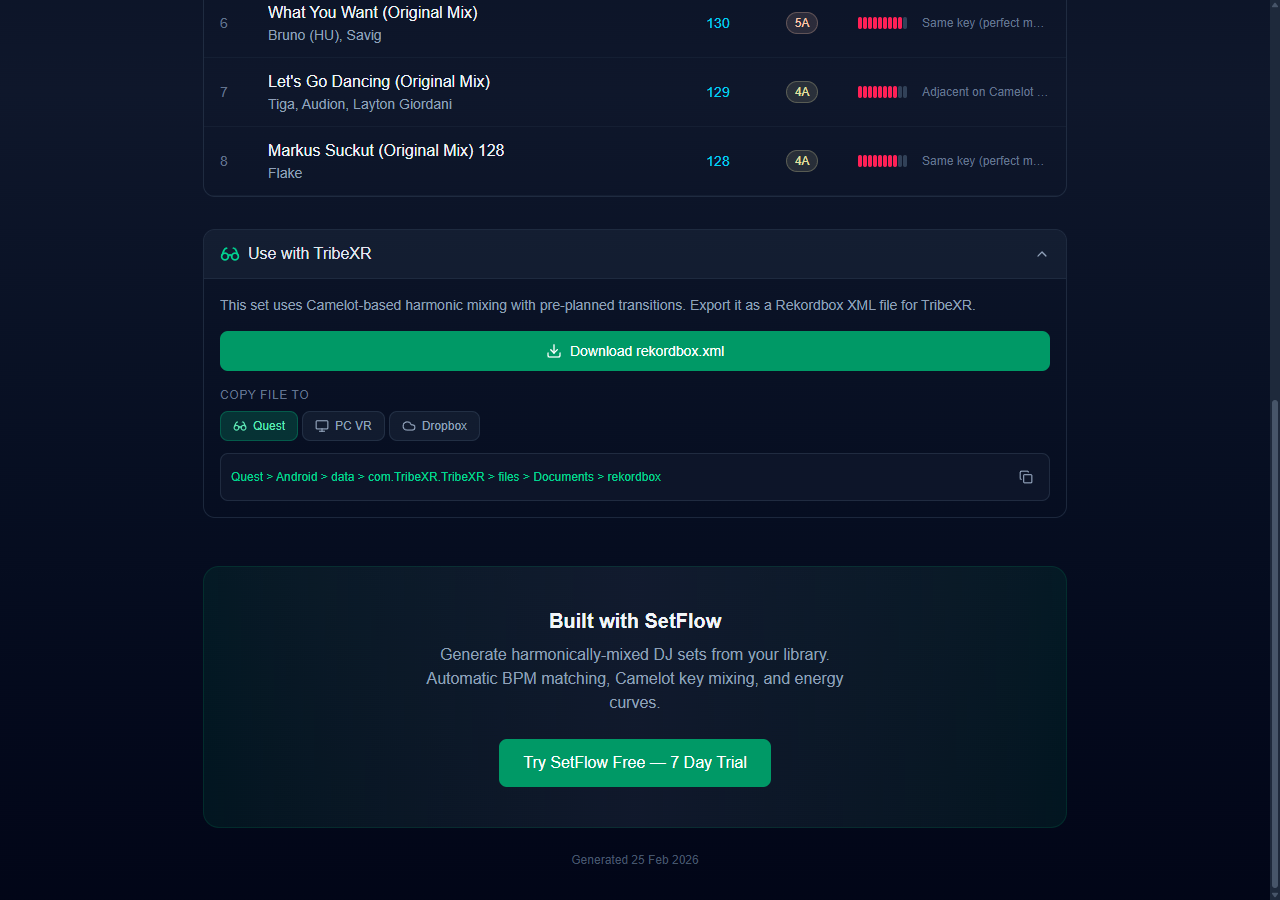
One of the trickiest parts of getting playlists into TribeXR is knowing where to put the files. The export modal handles this for you with platform-specific instructions and a copy-to-clipboard button for each path:
- Quest —
Android/data/com.TribeXR.TribeXR/files/Documents/rekordbox - PC VR —
Documents/TribeXR/Rekordbox - Dropbox —
Dropbox/Rekordboxfor wireless sync
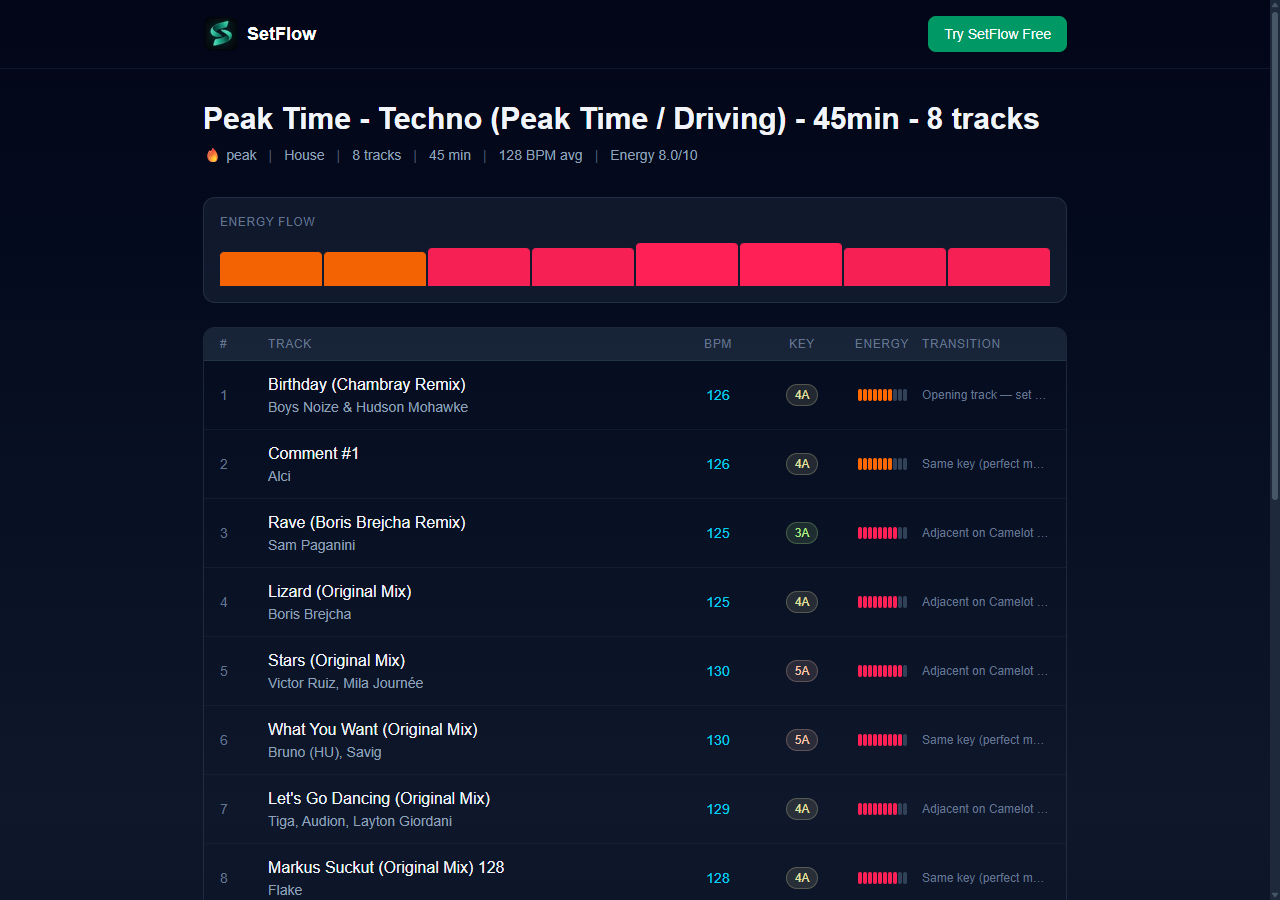
Public Set Pages Get TribeXR Too
If you've shared a set using shareable set links, viewers now see a “Use with TribeXR” section at the bottom of the public page. They can download the rekordbox.xml directly and follow the same platform-specific instructions — no SetFlow account needed.
This is perfect for sharing sets with the TribeXR community. Post your set link in the TribeXR Discord and anyone can import it into their VR setup in minutes.
VR Session Duration Presets
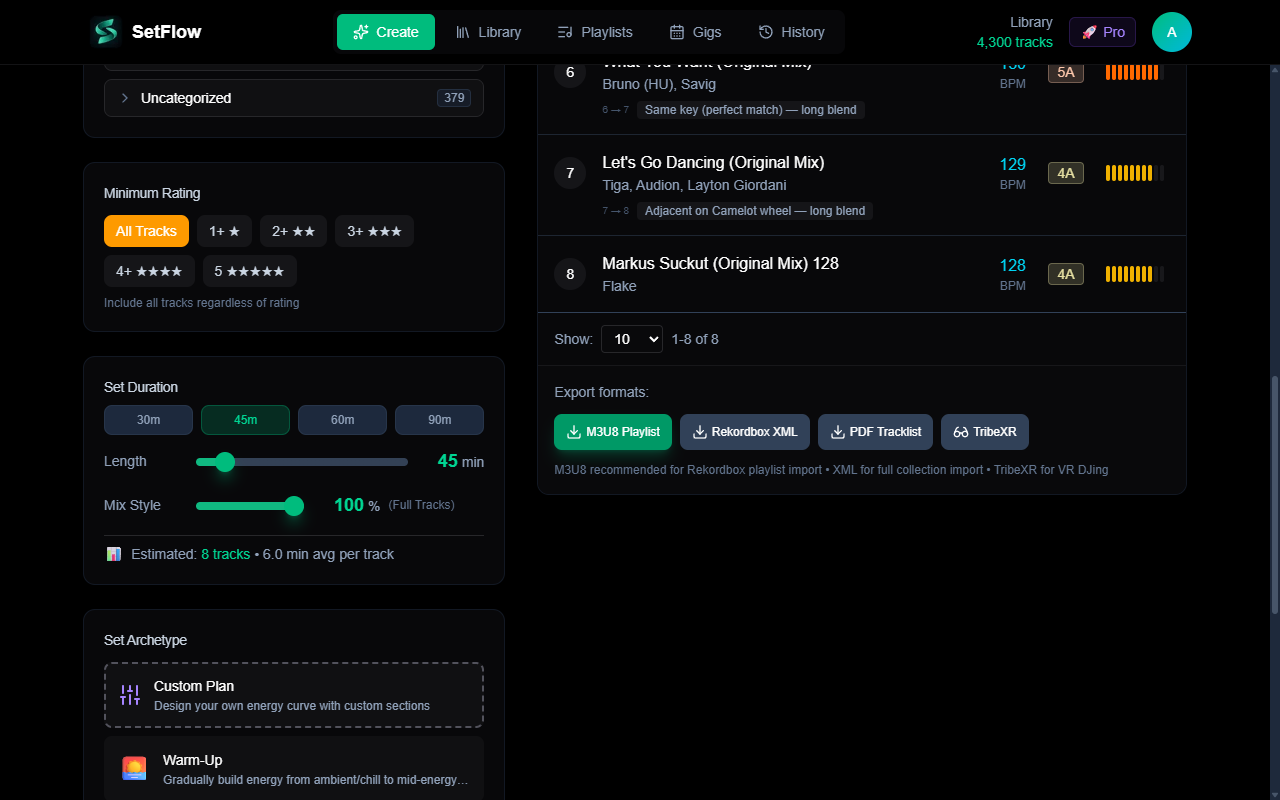
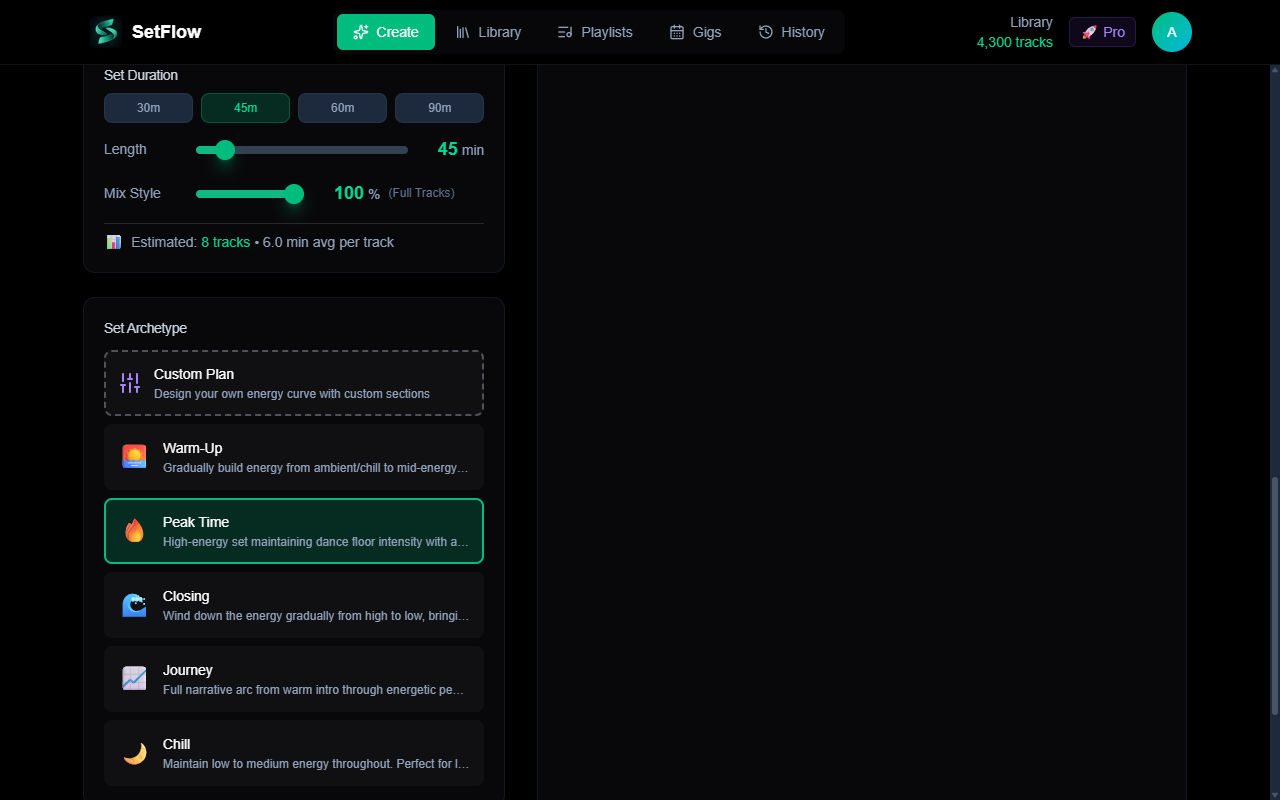
VR sessions have natural time boundaries — battery life, comfort, and session length all matter. We've added quick duration presets to the Create page:
- 30 min — a quick warm-up or practice session
- 45 min — a standard TribeXR session
- 60 min — a full-length set
- 90 min — an extended session or live stream
These presets sit above the duration slider, so you can set your target length with a single click instead of dragging.
Help Center & FAQ
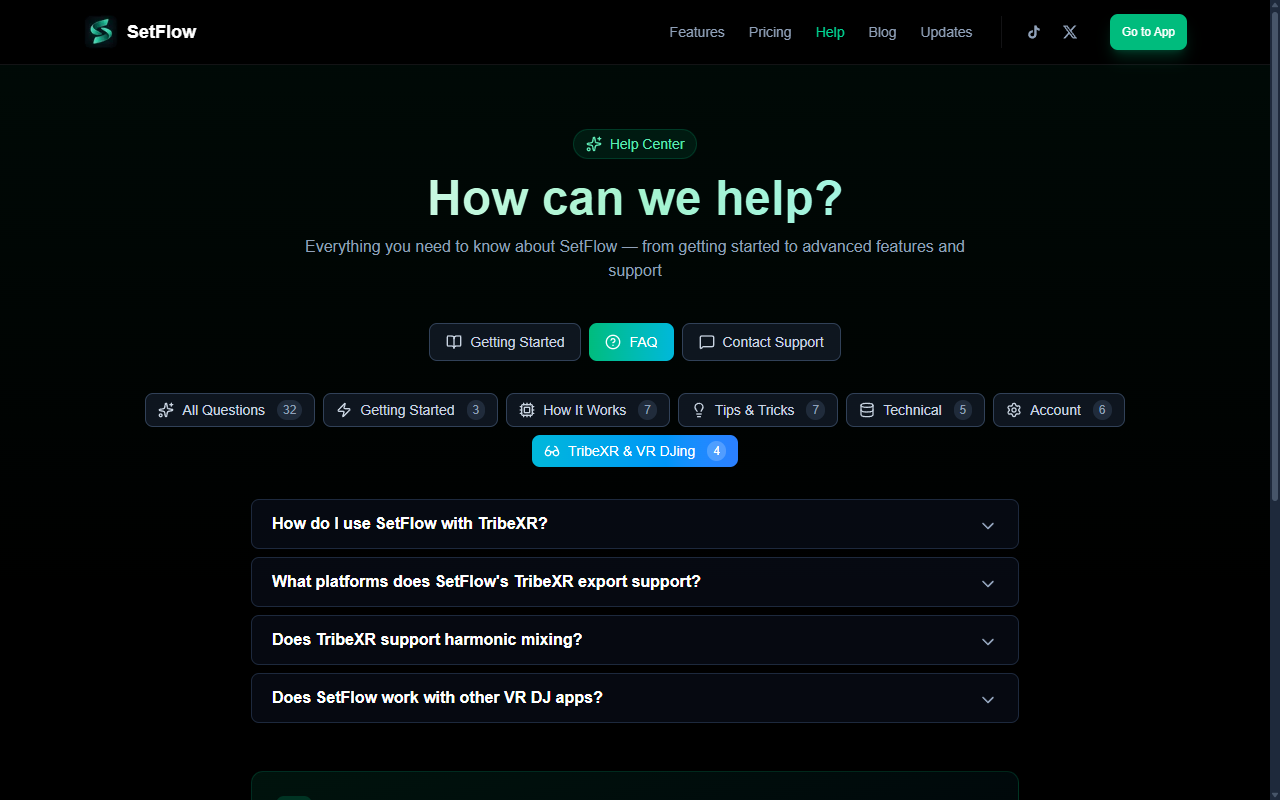
We've added a dedicated TribeXR & VR DJing category to the Help Center FAQ with four questions covering:
- How to use SetFlow with TribeXR (the full workflow)
- Supported platforms (Quest, PC VR, Dropbox)
- How harmonic mixing works with TribeXR
- Compatibility with other VR DJ apps
Export from History Too
Already have sets saved? You can export any previously generated set to TribeXR directly from the History page. Each set card includes a TribeXR export button, so you don't need to regenerate anything.
The TribeXR + SetFlow Workflow
Here's the complete workflow from Rekordbox to VR:
- Import your Rekordbox library into SetFlow
- Generate a set — pick your genre, energy profile, and duration
- Click “Export to TribeXR” and choose your platform
- Download the
rekordbox.xmlfile - Copy it to the correct folder on your device
- Make sure your music files are on the device too
- Open TribeXR — your set appears as a playlist
The whole process takes about two minutes once your library is imported. And because SetFlow handles the harmonic mixing, every transition in your VR session will sound musical.
Try It Now
TribeXR export is available on all plans — trial, Hobby, and Pro. Head to the Create page, generate a set, and click the TribeXR button in the export section. Or open any set from your History and export it to TribeXR from there.
New to SetFlow? Start your free trial and build your first VR-ready set today.
Quick Summary
- ✓One-click TribeXR export from Create and History pages
- ✓Guided 3-step modal: platform → review → download
- ✓Quest, PC VR, and Dropbox platform support with copy-to-clipboard paths
- ✓Public set pages include TribeXR download for community sharing
- ✓VR session duration presets (30m, 45m, 60m, 90m)
- ✓Dedicated TribeXR FAQ category in the Help Center
- ✓Available on all plans — trial, Hobby, and Pro
Ready to build better sets?
Import your Rekordbox, Traktor, or Serato library and generate perfectly mixed DJ sets in seconds.
Try SetFlow Free